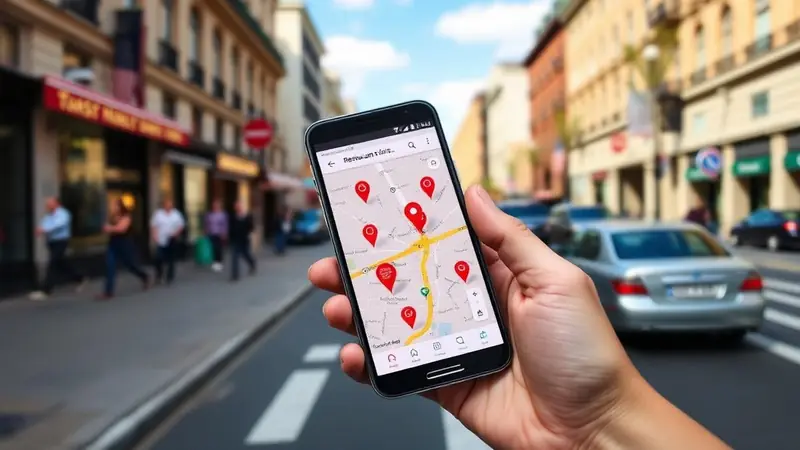
Using Google Business Profile posts for holiday offers and events

When someone searches for your business this week, there's a good chance they're looking for a deal, a gift idea or your hours on a busy shopping day. Google Business Profile posts let you put that information right on your profile, where people see it on Search and Maps.
With Black Friday on 27 November and Small Business Saturday on the 28th, now is a good moment to set some up.
The three types of post
Google offers three kinds of post, and each suits a different job.
| Post type | Best for | What you must include | Useful extras |
|---|---|---|---|
| Offer | Sales, discounts, gift card deals | A title, plus start and end dates and times | Coupon code, link, terms and conditions, photo or video. Google adds a "View offer" button automatically |
| Event | Late-night shopping, tastings, workshops, a festive menu launch | A title, plus start and end dates and times | Description, photo or video, action button |
| Update | General news, new stock, holiday reminders | A description | Photo or video, action button with a link |
One detail on events: if you leave out the times, Google shows the event as running for 24 hours on each of the dates you entered. Add times if your event only runs for an evening.
How to create a post
- Go to your Business Profile and select Posts, then Add post.
- Choose Update, Offer or Event.
- Fill in the details and add any extras, such as a button or coupon code.
- To publish later, turn on Schedule this post and pick a date and time. You can also set a post to repeat.
- Select Post. If you manage several profiles, you can choose which ones to share it to.
Scheduling is handy at this time of year. You could set up your Black Friday offer, your Small Business Saturday post and a Christmas hours reminder in one sitting.
Where people will see it
On mobile, posts show in the Updates or Overview tabs on Search and Maps. On desktop, they appear in a section called "From the owner."
Posts don't stay up forever. Google archives posts older than six months unless you set a date range, so dated offers and events will drop off on their own.
Why posts get rejected
Every post is checked against Google's content policies. A post can show as Live, Pending or Not approved, and a rejected post shows a question mark that tells you which policy it broke. The most common traps:
- Phone numbers in the description. Google says these may cause a rejection if the number can't be verified as linked to your business. Use the call button on your profile instead.
- Sloppy writing. Google asks for professional posts without spelling mistakes.
- Missing details. Give offers a clear title and terms, and give events their times.
- Regulated products. Businesses in industries like alcohol, tobacco, gambling or financial services can post, but not about the regulated products themselves.
- Bad links. Only link to trusted websites.
A simple plan for the next five weeks
- This week: an Offer post for Black Friday or Small Business Saturday.
- Early December: an Event post for anything special you're running, or an Update about gift cards.
- Mid December: an Update with your Christmas and New Year opening times, to back up the special hours on your profile.
Busy weeks bring more customers, and more customers bring more reviews. Wimi replies to your Google reviews in your own voice, the same day, so the conversation keeps going while you focus on the rush.
Start free – Wimi replies to your Google reviews in your voice. Free for up to 7 replies a week per location.
Mahnoor Akram, GTM Lead at Wimi
Mahnoor Akram writes about local discovery and reputation for independent restaurants at Wimi.